วันจันทร์ที่ 20 ธันวาคม พ.ศ. 2553

อุทธรณ์ยืนยกฟ้อง! “นาม ยิ้มแย้ม” ปฏิบัติหน้าที่มิชอบคดีที่ดินรัชดาฯ


21 ธันวาคม 2553 12:18 น.

คลิกที่ภาพเพื่อดูขนาดใหญ่ขึ้น
นายนาม ยิ้มแย้ม อดีตประธานคณะกรรมการตรวจสอบการกระทำที่ก่อให้เกิดความเสียหายแก่รัฐ ( คตส.)

ศาลอุทธรณ์พิพากษายืน ยกฟ้อง “นาม ยิ้มแย้ม” อดีตประธาน คตส.และพวก 11 คน ในคดี “ทักษิณ-หญิงอ้อ” กล่าวหาปฏิบัติหน้าที่มิชอบกลั่นแกล้งดำเนินคดีอาญาคดีทุจริตที่ดินรัชดาฯ ศาลวินิจฉัยข้อกฎหมายคดีไม่อยู่ในอำนาจ
      
       วันนี้ (21 ธ.ค.) เมื่อเวลา 10.00 น. ที่ห้องพิจารณาคดี 909 ศาลอาญา ถนนรัชดาภิเษก ศาลออกนั่งบัลลังก์อ่านคำพิพากษาศาลอุทธรณ์ คดีหมายเลขดำ อ.3020/2550 ที่ พ.ต.ท.ทักษิณ ชินวัตร อดีตนายกรัฐมนตรี และคุณหญิงพจมาน ณ ป้อมเพชร อดีตภริยา เป็นโจทก์ฟ้องนายนาม ยิ้มแย้ม อดีตประธานคณะกรรมการตรวจสอบการกระทำที่ก่อให้เกิดความเสียหายแก่รัฐ (คตส.) กับพวกรวม 11 คน ซึ่งเป็นอดีต คตส. ในความผิดฐานเป็นเจ้าพนักงานปฏิบัติหน้าที่ โดยมิชอบก่อให้เกิดความเสียหายแก่ผู้หนึ่งผู้ใด และกระทำผิดต่อตำแหน่งหน้าที่ในการยุติธรรม ตามประมวลกฎหมายอาญา มาตรา 157 และ 200
      
       ทั้งนี้ คดีนี้โจทก์ฟ้องว่า ระหว่างวันที่ 14 พ.ค. - 21 มิ.ย.50 จำเลยทั้ง 11 คนได้รับแต่งตั้งและมีอำนาจหน้าที่ตามประกาศคณะปฏิรูปการปกครองในระบอบ ประชาธิปไตย อันมีพระมหากษัตริย์ทรงเป็นประมุข (คปค.) และจำเลยทั้ง 11 คน ได้อาศัยอำนาจหน้าที่ในฐานะเป็นคณะกรรมการตรวจสอบการทุจริต โดยเจตนากลั่นแกล้งโจทก์ทั้งสองให้ตกเป็นจำเลยที่ศาลฎีกาแผนกคดีอาญาของผู้ ดำรงตำแหน่งทางการเมืองคดีซื้อขายที่ดินย่านถนนรัชดาภิเษก ให้โจทก์ได้รับความเสียหาย บิดเบือนข้อเท็จจริง เพื่อแกล้งให้โจทก์ทั้งสองเกิดความเสียหาย และต้องรับโทษจำคุกริบทรัพย์สิน เหตุเกิดที่แขวงสามเสนใน เขตพญาไท กทม.
      
       ขณะเดียวกัน ศาลชั้นต้นมีคำพิพากษา เมื่อวันที่ 26 พ.ย.50 เห็นว่า คดีนี้วินิจฉัยโดยไม่ต้องมีการไต่สวนมูลฟ้อง ซึ่งแม้ว่าโจทก์จะยื่นฟ้องต่อศาลก่อนที่จะมี พ.ร.บ.แก้ไขเพิ่มเติม ตามประกาศ คปค.ฉบับที่ 30 จะมีผลบังคับใช้ แต่การที่จำเลยยื่นฟ้อง คตส.ในความผิดดังกล่าวต้องไปยื่นฟ้องต่อศาลฎีกาแผนกคดีอาญาของผู้ดำรง ตำแหน่งทางการเมือง เนื่องจากศาลอาญาไม่มีอำนาจพิจารณาพิพากษา จึงพิพากษายกฟ้องโจทก์ทั้งสอง ต่อมาโจทก์ทั้งสองยื่นอุทธรณ์
      
       อย่างไรก็ตาม ศาลอุทธรณ์ประชุมตรวจสำนวนประชุมปรึกษาหารือพิจารณาข้อกฎหมาย ตามอุทธรณ์โจทก์ทั้งสองแล้วทั้งประมวลวิธีพิจารณาความแพ่ง ประกาศ คปค.ฉบับที่ 30 มาตรา 173 และรัฐธรรมนูญแห่งราชอาณาจักรไทย พ.ศ.2550 มาตรา 249 เกี่ยวกับการรับฟ้องและวิธีพิจารณาในศาลชั้นต้น การแต่งตั้ง คตส. และถอดถอน ป.ป.ช. ซึ่งทำหน้าที่ตรวจสอบการทุจริตแล้วเห็นว่าที่ศาลชั้นต้นพิพากษานั้น ศาลอุทธรณ์เห็นพ้องด้วย พิพากษายืน

ก.ต.ไล่ออกผู้พิพากษาผิดชู้สาว-รับสินบน 70 ล.

ก.ต.ไล่ออกผู้พิพากษาผิดชู้สาว-รับสินบน 70 ล.
20 ธันวาคม 2553 22:57 น.

       ก.ต. มีมติไล่ออก“สมศักดิ์ จันทกุล”ผู้พิพากษาศาลอุทธรณ์ ทำผิดวินัยร้ายแรง มีพฤติการณ์ฉันท์ชู้สาวเมียชาวบ้าน-เรียกรับสินบน เดินหน้าดำเนินคดีอาญา
      
       วานนี้(20 ธ.ค.)เวลา 13.30 ที่ศาลฎีกา สนามหลวง นายสบโชค สุขารมณ์ ประธานศาลฎีกาเป็นประธานประชุมคณะกรรมการตุลาการ (ก.ต.) พิจารณาลงมติ กรณีมีผู้ร้องเรียน นายสมศักดิ์ จันทกุล ผู้พิพากษาศาลอุทธรณ์ ถูกกล่าวหา มีพฤติการณ์ฉันท์ชู้สาวกับหญิงที่มีสามีแล้ว และเรียกรับผลประโยชน์ โดยที่ประชุม ก.ต.มีมติเห็นว่า นายสมศักดิ์ กระทำผิดวินัยร้ายแรง ตามที่มีผู้ร้องเรียนจริง จึงมีมติให้ไล่ นายสมศักดิ์ ออกจากราชการ โดยให้สำนักงานศาลยุติธรรมทำหนังสือเสนอโปรดเกล้าฯให้พ้นจากตำแหน่ง และเรียกคืนเครื่องราชย์ฯทุกชั้นยศ พร้อมกับพิจารณาเรื่องการดำเนินคดีอาญา
      
       สำหรับการร้องเรียนครั้งนี้ ผู้ร้องได้เปิดเผยชื่อตนเองพร้อมส่งพยานหลักฐานเอกสาร ภาพถ่ายประกอบการพิจารณาของ ก.ต. อย่างค่อนข้างชัดเจน ว่า นายสมศักดิ์ มีพฤติการณ์ฉันท์ชู้สาวกับหญิงที่มีสามีแล้ว ยังอาศัยหญิงรายดังกล่าวใช้ในการเรียกร้องสินบนในการตัดสินพิพากษาคดีต่างๆ หลายคดีเป็นเงินรวมหลายสิบล้านบาทขึ้นอยู่กับความสำคัญของคดี เช่น
      
       1. มีการเรียกสินบนเป็นเงิน 70 ล้านบาทในการพิจารณาคดีบริษัทจดทะเบียนแห่งหนึ่งที่กลุ่มผู้บริหารบริษัทถูก กล่าวหาว่า กระทำผิด พ.ร.บ.หลักทรัพย์และตลาดหลักทรัพย์ในการยักยอกทรัพย์ หรือไซฟ่อนเงินของบริษัท และเกี่ยวพันกับตระกูลนักการเมืองระดับรัฐมนตรี ซึ่งศาลชั้นต้นสั่งยกฟ้อง
      
       2. คดีโรงแรมชื่อดังย่านสุขุมวิท 3. คดีการประกันตัวจำเลยในคดีตาม พ.ร.บ. การกู้เงินอันเป็นการฉ้อโกงประชาชน หรือแชร์ลูกโซ่มีการเรียกเงินสินบน 2 ล้านบาท หลังจากได้รับการปล่อยตัวชั่วคราวแล้วจำเลยได้ซื้อรถยนต์ Benz รุ่น S 280 ปี 2002 ในราคา 2.1 ล้านบาท ที่เหลืออีก 1.5 ล้านบาท จัดไฟแนนซ์ให้อีกด้วย และ 4.เรียกสินบน 3.5 ล้านบาทในการสั่งอนุญาตการปล่อยชั่วคราวชาวต่างประเทศรายหนึ่ง โดยทนายความของจำเลยได้ยื่นคำร้องประกอบการขอปล่อยชั่วคราวต่อศาลอาญาและ ศาลอุทธรณ์มาหลายครั้งแล้ว แต่ก็ไม่ได้รับการอนุญาต ทนายความจึงติดต่อผ่านหญิงที่มีสัมพันธ์กับผู้ถูกร้องเรียน ซึ่งตกลงเรื่องเงินสินบนเป็นเงิน 3.5 ล้านบาท จากนั้นจึงมีคำสั่งอนุญาตให้ปล่อยตัวชั่วคราวจำเลยดังกล่าวในเดือนกันยายน 2552
      
       ประธานศาลฎีกา ได้มีคำสั่งแต่งตั้งคณะกรรมการสอบสวนข้อเท็จจริงเบื้องต้น โดยคณะกรรมการสอบสวนฯ ได้พิจารณาเอกสารหลักฐานและสอบถามผู้ร้องเรียนซึ่งได้ยืนยันข้อเท็จจริงตาม คำร้องเรียน นอกจากนี้ยังได้สอบถามผู้เกี่ยวข้อง แล้วเห็นว่าข้อร้องเรียนดังกล่าวมีมูล จึงได้รายงานให้ประธานศาลฎีกาทราบ และต่อมา ก.ต. ได้มีคำสั่งให้ตั้งคณะกรรมการสอบสวนวินัย และมีคำสั่งให้ย้าย นายสมศักดิ์ ไปเป็นผู้พิพากษาศาลอุทธรณ์ประจำสำนักงานศาลยุติธรรมซึ่งเป็นตำแหน่งแขวนไม่ มีหน้าที่ในการพิจารณาคดี พร้อมทั้งเซ็นคำสั่งพักราชการนายสมศักดิ์ ไว้ด้วย
      
       กระทั่งคณะกรรมการสอบสวนวินัยร้ายแรง สอบสวนเสร็จสิ้นแล้ว เห็นว่า นายสมศักดิ์ ได้กระทำผิดตามที่มีผู้ร้องเรียน กล่าวหาจริงใน 2 กรณี คือ มีพฤติการณ์ฉันท์ชู้สาวกับหญิงที่มีสามีแล้ว และเรียกรับสินบนแลกกับการสั่งอนุญาตให้ปล่อยตัวชั่วคราวจำเลย เข้าข่ายเป็นความผิดต่อตำแหน่งหน้าที่ในการยุติธรรม เพราะเป็นการรับสินบนเพื่อล้มคดีหรือให้ปล่อยตัวจำเลยชั่วคราวเป็นความผิด ทางอาญา เป็นการกระทำผิดวินัยร้ายแรง จึงเสนอให้อนุ ก.ต. พิจารณาเสนอที่ประชุม ก.ต.พิจารณาลงโทษให้ไล่ออกจากราชการดังกล่าว
      
       มติ ก.ต.ในครั้งนี้ สอดรับกับคำปราศรัยของนายสบโชค สุขารมณ์ ประธานศาลฎีกา เนื่องในอภิลักขิตสมัยขึ้นปีใหม่ พุทธศักราช 2553 ที่มอบให้แก่ประชาชนชาวไทยตอนหนึ่งว่า...“ศาลยุติธรรมได้กำหนดนโยบายที่จะ เพิ่มพูนประสิทธิภาพในการอำนวยความยุติธรรมให้แก่ประชาชนด้วยความถูกต้อง รวดเร็ว เป็นธรรมและทั่วถึง รักษามาตรฐานทางจริยธรรมและความเป็นกลางของผู้พิพากษา สร้างความปรองดองและสมานฉันท์ในสังคมด้วยการส่งเสริมการเคารพในวัฒนธรรม ศาสนา และกฎหมาย กระผมและข้าราชการฝ่ายตุลาการศาลยุติธรรม ผู้ปฏิบัติหน้าที่ภายใต้พระปรมาภิไธยของพระมหากษัตริย์ ขอตั้งปณิธานอย่างแน่วแน่ที่จะปฏิบัติหน้าที่เพื่ออำนวยความยุติธรรมให้แก่ ประชาชนด้วยความถูกต้องและเที่ยงธรรม ยึดมั่นในคุณธรรม จริยธรรม ความซื่อสัตย์สุจริต เพื่อความสงบสุขและร่มเย็นของสังคมและพี่น้องชาวไทยได้อยู่ร่วมกันโดยเปี่ยม ด้วยความผูกพันและห่วงใยต่อกัน”

วันอาทิตย์ที่ 19 ธันวาคม พ.ศ. 2553

Linux for beginner

What Is Linux?
To some, the first thing that comes in mind when asked this question is "Linux is an operating system." That's not completely false, but neither accurately true. Linux per se is only the kernel of the operating system, the central part of it. A Linux-based operating system comprises of the Linux kernel, the GNU tools and utilities (like the Bash shell, or the GCC compiler), desktop environments (like KDE and GNOME), and finally, all the other applications, graphical or not (like a music player or an image editor).

What you are installing on your computer is called a Linux distribution, or a Linux-based operating system. A Linux distribution takes all the parts mentioned above and assembles them, eventually polishing and customizing them. There are hundreds of good Linux distributions out there, and I couldn't contain all of them here. Some examples include the popular Ubuntu, Debian, openSUSE or Fedora. You can find more information about Linux distributions at DistroWatch or on Wikipedia.

Usually Linux is cost-free, but some companies may charge for it or for support. The kernel and all the GNU tools are licensed under a free, permissive license (the GPLv2 or GPLv3), which allows not only to download freely and redistribute it, but also to study and modify the source code.
Introduction: Basic Commands and Concepts
What is a shell?

A shell is a command interpreter which allows you to interact with the computer. The way things work is pretty simple: you type in commands, the shell interprets them, performs the tasks it was asked to do, and finally it sends the results to the standard output, which is usually the screen. Here's an example output of the ls command, which lists the files in a directory:
debian$ ls
bin dev home media proc selinux tmp vmlinuz
boot etc lib mnt root srv usr initrd.img
cdrom floyd lost+found opt sbin sys var
This is a list of files inside the root directory. The root directory is the first location in the filesystem tree hierarchy, and it is represented by the slash character: /.

Some of the most popular shells are:
  • bash - the Bourne-Again Shell, the default shell on most Linux systems
  • sh - the Bourne Shell, an older shell which is not so widely used anymore
  • csh - the C Shell, which accepts a syntax which resembles the C programming language
  • tcsh - an improved version of the C Shell
  • ksh - the Korn Shell, initially developed in the early 1980s
  • dash - Debian Almquist Shell, a shell created by the Debian distribution
In this tutorial we will focus on Bash, since it is the most widely used and also one of the most powerful shells out there. Bash is a modern implementation of the older Bourne Shell (sh), developed by the GNU project, which provides a huge amount of tools and which, together with the Linux kernel, desktop environments like GNOME or KDE and applications which run on top of them, comprise the whole Linux platform. On a Debian or Ubuntu distribution, the default shell used by the system is specified in the file /etc/passwd (default being Bash).

Starting up a terminal

To access the shell we will use a shell-like application, also called a terminal emulator. There is a huge number of good terminal applications out there, including the default ones in GNOME or KDE, or Yakuake, Guake, rxvt and so on. For now let's just stick with the default that comes with your system. If you're using GNOME you can access the terminal by going to Applications->Accessories->Terminal or pressing Alt+F2 and typing gnome-terminal in the run box that appears, followed by Enter. If you're running KDE you can type instead konsole after pressing Alt+F2.

Depending on your distribution, the prompt may look something like user@host$ . The first part before the ampersand is your login username, and the other one is the hostname of your computer.
Moving Around
What are Linux commands?

Linux commands are executable binary files which can be ran to perform certain tasks, like for example listing the files in a directory running an entire graphical application. Examples of frequently used commands are ls, cd, pwd, date or cat. With the exception of executable files, there is also a category called shell built-ins, which are commands provided by the shell itself (Bash in our case). We'll deal with those later.

The general form of a Linux command is:
command options(s) filename(s)
Which specifies a command, followed by one or more parameters, and optionally one or more files to apply it on. For example:
$ echo -e 'Hello, world!\n'
Will output the text 'Hello, world!' followed by a newline character. The -e parameter (also called argument, or switch in this case) tells the echo command to interpret escaped characters, like the trailing \n, which will add a newline after the text inside the single quotes. Ignore the leading dollar sign, it just signifies the shell prompt.

A command may or may not have arguments. An argument can be an option or a filename.

Moving around using cd and pwd

Usually when you start a terminal the default starting location (called the current working directory) is your home folder, /home/your_username/. Let's say we want to move to the root directory. We will issue the following command:
cd /
As you can see, we used the cd (change directory) command, followed by a single argument, the path where we want to go (the root directory is represented by the slash sign). Now let's vizualize the contents of the root directory using the ls command:
$ ls
bin dev home media proc selinux tmp vmlinuz
boot etc lib mnt root srv usr initrd.img
cdrom floyd lost+found opt sbin sys var
These are all files and directories located in our root folder. If we would've wanted to list the contents of this folder directly from where we were, in the home folder, we would've called ls with a single argument, the slash sign:
$ ls /
bin dev home media proc selinux tmp vmlinuz
boot etc lib mnt root srv usr initrd.img
cdrom floyd lost+found opt sbin sys var
And it would've had the same result.

Now let's go back inside our home directory and list its contents. To do this, we have two options: cd without any parameters always changes the working directory to the home of the current user (unless it is aliased). Alternately, you could type:
$ cd /home/your_username/
And you should be back in your home folder. Don't forget to replace your_username. If you don't know what your username is type echo $USER. On my computer this would output 'embryo', which is the user I'm currently logged in with:
debian$ echo $USER
embryo
Now let's see what the current working directory is. We will use the pwd (print working directory) command to do so:
$ pwd
/home/embryo/
Now let's see the contents of our home directory using the ls command. It should output something like the following (yours may vary):
$ ls
Downloads Music my_stuff textfile
There is more to ls though. Let's say we want to also list hidden files and show detailed information about each separate file. For this we will group several switches and pass them to ls:
$ ls -lha
total 20K
drwxr-xr-x 2 embryo embryo 4.0K 2010-12-19 15:12 Downloads
drwxr-xr-x 2 embryo embryo 4.0K 2010-12-19 15:12 Music
drwxr-xr-x 2 embryo embryo 4.0K 2010-12-19 15:21 my_stuff
-rw-r--r-- 1 embryo embryo 0 2010-12-19 15:21 textfile
drwxr-xr-x 5 embryo embryo 4.0K 2010-12-19 15:32 .
drwxr-xr-x 62 embryo embryo 4.0K 2010-12-19 15:12 ..
-rw-r--r-- 1 embryo embryo 0 2010-12-19 15:32 .bashrc
We grouped three different switches and passed them to ls: the l switch tells ls to use the long listing format (with detailed information about each separate file), the h switch tells ls to show file sizes in a human-readable format (kilobytes, megabytes or gigabytes where is the case instead of bytes) and finally, the a switch tells ls to also show the hidden files (the ones that start with a dot - in our case ., .. and .bashrc). You will have more in your home directory.

Regarding the dot and double dot: these are also files, in that they are virtually meaning the current directory and the parent directory, respectively. So, ls .. will list the contents of the parent directory, which in our case is /home/. ls . will list the contents of the current directory just like ls without arguments does. Bash uses expansion to replace these with their actual meaning. So issuing ls .. is read by Bash exactly like you would type ls /home/, since /home/ is the parent directory relative to what the current working directory is.

Absolute and relative paths

An absolute path is a complete path, and it always starts with the root directory (slash sign). /home/embryo/, /, /usr/bin/, these are all absolute paths. They specify the complete path up to a certain point.

On the other hand, a relative path will always take into consideration the current working directory. So if you are, say, in the directory /home/ and you want to change to, say, /home/embryo/Downloads you could do it like this:
$ cd /home/embryo/Downloads
In this example we specified the full path to the Downloads directory, or the absolute path. Notice the leading / sign for root. To do it using a relative path we would issue this command:
$ cd embryo/Downloads
Notice that we only specify the path from where we are, and there is no leading slash sign.

Go back to your home folder (use cd) and let's see how the double dot works. As I already mentioned, the double dot means the parent directory of the directory we're currently in. So let's say we want to go to the root directory again, but this time using double dot. Here's the command:
cd ../../
Which tells cd to go up to the parent directory, and then go up in the tree hierarchy one more time. You should be in the root directory now (check with pwd). The trailing slash in the above command is not necessary.

Performing simple tasks

Now let's focus on performing simple tasks like creating directories, view date and time, or simply playing around with some more basic commands.

Creating new files and directories
To create a new directory, we will use the mkdir (make directory) command. First, make sure you are in your home directory with pwd. If not, type cd to get there. Now, let's create a new directory:
debian$ mkdir myfolder
We created a new directory called myfolder. If you list your files now, your new folder should appear:
debian$ ls
Downloads Music myfolder my_stuff textfile
Now let's go inside our newly created folder, only this time using cd ~/myfolder/. The tilda sign signifies your home directory, and it expands into /home/your_username/. So issuing cd ~/myfolder/ is the same as issuing cd /home/embryo/myfolder/. Now let's create another folder, called docs:
$ mkdir docs
Now let's create an empty file using the touch command:
$ touch emptyfile
The touch command creates an empty file with the name of its argument if that file doesn't already exist, or it updates the last modification date and time if it exists. Now since we created an empty folder and an empty file, let's see how we can delete them.

To remove files or folders, we will use the rm command. To remove our newly created file type:
$ rm emptyfile
And to remove the docs directory:
$ rm -r docs
Notice that to remove a directory we need the -r switch.

Copying and moving files
Let's go back inside /home/your_username/myfolder/ and create a new directory and a new file:
mkdir newdir
touch newfile
Now let's use the cp command to copy the file newfile inside the directory newdir:
$ cp newfile newdir
This is the same as if we would've typed the following:
$ cp /home/embryo/myfolder/newfile /home/embryo/myfolder/newdir/
But in our first example we used a relative path.

Now let's create another file inside myfolder, and then move it to newdir:
touch file2
mv file2 newdir
We used the mv command to move it. Now let's create a new file inside myfolder, and rename it. Notice that in Linux renaming is accomplished using the mv command, they are one and the same thing. Let's create a file called mynewfile and rename it to file3 (we will list the contents of the directory after each step to see the changes):
$ touch mynewfile
$ ls
mynewfile newdir newfile
$ mv mynewfile file3
debian$ ls
file3 newdir newfile
Now let's go inside the newdir directory, and use the double dot to move file2 from there inside myfolder, and also rename it (we will list the contents after each step to reflect the changes):
$ cd newdir/
$ ls
newfile
$ mv newfile ../renamed_file
$ cd ..
$ ls
file3 newdir newfile renamed_file
So first we entered in newdir. The file newfile was there since we moved it earlier. Next, we moved it to the parent directory, but with a changed name, renamed_file. Next, we changed the working directory to the parent of newdir and we listed its contents. As a side note, if you copy or move a file and the new destination name is the name of a directory, the file will be moved inside that directory.

Date and time
To view the current system's date and time, we will use the date command:
debian$ date
Sun Dec 19 16:06:53 EET 2010
Notice that date can be invoked in various ways in order to format the output. For example, to show only the time in an HH:MM:SS format (hour, minute, second) we would use:
$ date +"%H:%M:%S"
16:09:52
The +"%H:%M:%S" parameter formats the output of the date command. Another useful command is cal, which will show a calendar:
debian$ cal
December 2010
Su Mo Tu We Th Fr Sa
1 2 3 4
5 6 7 8 9 10 11
12 13 14 15 16 17 18
19 20 21 22 23 24 25
26 27 28 29 30 31

More basic commands
You can try the whoami command, which will show your username:
$ whoami
embryo
The command uname is used to print system information. In combination with the -a (all) switch, it will print various information including hostname, kernel version, date and operating system:
$ uname -a
Linux debian 2.6.26-2-686 #1 SMP Thu Nov 25 01:53:57 UTC 2010 i686 GNU/Linux
The who command is used to show is logged on, the number of the tty (teletype terminal) or display they are using, and the date and time they logged in:
$ who
embryo :0 2010-12-19 07:55
Another useful command is uptime, which will show for how long the system has been running:
$ uptime
20:10:31 up 12:15, 1 user, load average: 0.02, 0.02, 0.00
To print a line of text to the screen we'll use the echo command:
$ echo 'Hello, world!'
Hello, world!
Searching for commands
In order to see the path in which a command is located we will use the whereis command, which will search in all the standard locations:
$ whereis bash
bash: /bin/bash /etc/bash.bashrc /usr/share/man/man1/bash.1.gz
Notice that whereis will not look into non-standard paths. Instead, we can use the which command for that:
$ which wesnoth
/home/embryo/usr/bin/wesnoth
More Useful CLI Commands
Using cat and less

The cat command is used to concatenate one or more files and print the result to the standard output. If only one file is specified as input, cat will print its contents to the screen. For example, here's the output of the cat /etc/mtab command, which prints the contents of the /etc/mtab file:
$ cat /etc/mtab
/dev/sda1 / ext3 rw,errors=remount-ro 0 0
tmpfs /lib/init/rw tmpfs rw,nosuid,mode=0755 0 0
proc /proc proc rw,noexec,nosuid,nodev 0 0
sysfs /sys sysfs rw,noexec,nosuid,nodev 0 0
procbususb /proc/bus/usb usbfs rw 0 0
udev /dev tmpfs rw,mode=0755 0 0
tmpfs /dev/shm tmpfs rw,nosuid,nodev 0 0
devpts /dev/pts devpts rw,noexec,nosuid,gid=5,mode=620 0 0
/dev/sda5 /floyd ext3 rw 0 0
So cat would be one way of vizualizing the contents of a file. However, if your terminal doesn't have scrollback history enabled, or you're in a tty and the file you're trying to read is too big, cat will only display the end of the file on a single page. This is where the less command is useful.

less will display the contents of a text file and allow you to navigate up and down to read it. Here are the keyboard shortcuts used by less:
  • J - scroll down one line (equivalent with Ctrl-N or down arrow)
  • K - scroll up one line (equivalent with Ctrl-P or up arrow)
  • Ctrl-V - scroll down one page (equivalent with Page Down)
  • Alt-V - scroll up one page (equivalent with Page Up)
To exit less press Q.

Using tar, gzip and bzip2

These are commands used to create archives and compressed files. tar is a tool which creates archives known as tar files, while gzip is a compressing tool which uses an advanced compression algorithm. bzip2 is an advanced compression tool which takes more time to compress/uncompress files, but it offers a better compression ratio, which results and smaller files. bzip2 is usually used to save disk space and Internet bandwidth.

To uncompress a .tar.gz file you would issue a command like the following:
tar -xzf archive.tar.gz
Where x stands for extract, z specifies that the compressed file is a gzip file, and f stands for the filename.

To uncompress a .tar.bz2 file you would use something like:
tar -xjf archive.tar.bz2
And finally, to create a .tar.gz compressed archive from a directory, use:
tar -czf output_file.tar.gz input_directory
This will create the compressed file output_file.tar.gz from the contents of input_directory, which will be the root directory.
The Power of the Shell
Standard GNU tools usually have two ways of specifying an option, the short and the long syntax. For example ls -a and ls --all will do the same thing, namely list all the hidden files in the current directory (files that start with a dot).

Parameters specified between the [ and ] brackets are optional, for example the synopsis ls [OPTION]... [FILE]... tells us that OPTION or FILE don't necessarily need to be specified.

Using TAB completion

TAB completion is one of the powerful features of the shell. Typing a few starting letters from a command and pressing TAB will auto-complete the whole command which starts with those few letters, or will offer the longest possible pattern in case more commands share the same letters in the beginning. For example, if we type ba followed by TAB, the shell will show us possible completion variants, like bash or batch. This may not look interesting for system commands which are usually short, but it is a feature which will come in handy in time.

Using control characters

The shell uses certain key combinations to perform certain actions. These key combinations are called control characters, and although they may be hard to learn at start, once you've mastered them you will find them faster and powerful than using the arrow keys or the Home/End and Page Up/Page Down keys. Most of these key combinations are used by Emacs too, a very powerful development environment (and not only). Also notice that these are easier to use for a person who knows blind-typing, since they don't require to move your fingers away from the typing position. The caret (^) sign in front of every key means "press Ctrl and the following key". Here is the list:
  • ^A - go to the start of line
  • ^E - go to the end of line
  • ^H - erase one character to the left (same effect as Backspace)
  • ^D - erase one character to the right (same effect as Delete, it also exits the shell if there is no character to delete))
  • ^U - erase everything from the cursor to start
  • ^K - erase everything from the cursor to end
  • ^P - bring the previous command in history
  • ^N - bring the next command in history
  • ^C - interrupt character, sends SIGTERM to the current application
You should familiarize with those, since once learned they will prove quite productive.

The ^N and ^P commands will cycle through the commands in the order in which they were given, so if for example you type ^N twice, the shell will bring the command you issued before the last command. ^D is also called the EOF (end-of-file) character and it is used to tell a program that the input has ended and it can return its output. As an example, you can type wc -l, which will count the lines in a file, but without providing the filename. In this case wc waits for you to enter lines and after you have ended type Ctrl-D to tell it you entered the text and want to know how many lines you typed in.

Make use of Bash history

Bash keeps a command history so you can recall commands at a later time. Some of the commands available for this include the use of !!, which will recall and execute the last command, !command_name, which will recall and execute the last command in history which starts with command_name or !?command_name?, which will recall and execute the last command in history which contains the string command_name.
Linux Directory Structure
Linux, just like UNIX, uses a tree hierarchical directory structure. The common standard directories on a Linux system are briefly overviewed below:
  • / - the root directory
    • /bin - contains important, vital utilities, like cp, ls or kill
    • /sbin - contains system administration utilities available to the root user, like ifconfig
    • /boot - contains the Linux kernel image used to boot the system
    • /dev - contains special files pointing to system devices
      • /dev/null - pseudo device used to pipe away unwanted data
    • /etc - contains configuration files for various applications
    • /home - contains home directories for system users
    • /lib - contains shared libraries available for all programs throughout the system
    • /media - mount points for devices
    • /mnt - mount points for filesystems
    • /root - home directory for the root superuser
    • /proc - virtual files providing system information
    • /tmp - stores temporary files
    • /var - logs, emails, printing jobs
    • /usr - all the programs which are not located in /bin or /sbin, documentation, manual pages, icons etc
      • /usr/bin - all binary applications not residing in /bin or /sbin
      • /usr/include - development headers used by the system
      • /usr/lib - shared libraries
      • /usr/local - applications which were not installed using the distribution's package manager; manually compiled applications go here
Environment Variables
Environment variables are special variables used by the shell and other applications to gather various information. For example, earlier in this tutorial we used the command echo $USER, which showed the currently logged in user. In this example, $USER is an environment variable. Some more examples include $HOSTNAME, $PATH, $PWD, $SHELL, $HOME, $LANG. And their output:
$ echo $HOSTNAME
debian
$ echo $PATH
/usr/local/bin:/usr/bin:/bin:/usr/games:/home/embryo/bin:/home/embryo/sym:
/home/embryo/usr/local/bin:/home/embryo/usr/bin
$ echo $SHELL
/bin/bash
$ echo $LANG
en_US.UTF-8
Some of them can be changed inside the ~/.bashrc file, for example the $PATH variable, which contains the locations in which to search for an executable file.
Bash Built-ins
As the name suggests, built-ins are commands which are provided by the Bash program itself rather than external commands provided by system binaries. To see all the built-ins included with Bash you can type help. Some examples would be:
  • . - or source, read and execute shell commands from a filename
  • alias - define new aliases
  • bg - place the specified job as argument in the background
  • fg - place the specified job as argument in the foreground and make it the current job
  • read - read one line of input from the standard input
  • if - conditional command; execute commands if the specified condition is true
  • while - loop command; execute commands as long as the condition specified is true
  • help - display all the available shell built-ins; help command_name will display help on the specified command
You can use the type command (which is also a built-in) to see if a command is a file or a shell built-in:
$ type type
type is a shell builtin
$ type bash
bash is /bin/bash
$ type cd
cd is a shell builtin
If the specified command is an alias, the output will be something like the following:
$ type ls
ls is aliased to `ls --color=auto -X'
In order to start an application in the background use the & sign after the command, e.g. man bash & will start the man command with the Bash manual page in background. To bring it in the foreground type fg, and then to put it back in the background press Ctrl-Z.
Pipes and Redirecting Output
Using pipes

Pipes are a powerful way to take the output of one command and feed it as input for another command. A pipe is represented by a vertical line (|). For example:
$ cat /etc/init.d/ifupdown | grep start
start|restart)
/etc/init.d/ifupdown-clean start
echo "Usage: $0 {start|stop|restart|force-reload}" >&2
The cat (concatenate) command is used to concatenate the content of one or more files and print the result to the output. Since in our example the only argument is a single filename, cat should print the contents of that file. The grep command is used to print lines that match a certain pattern, specified as a parameter.

The command we issued is cat /etc/init.d/ifupdown | grep start. The first command would normally print the entire contents of the file ifupdown to the output, but since we have a pipe here, the contents of the file will be the input for the grep start command. In the end, only the lines containing the text 'start' are printed. This command is equivalent to:
$ grep start /etc/init.d/ifupdown
Redirecting output

There are two common operators for redirecting output: > and >>. The first one will create a new file and write in it the output which was redirected. If the file already exists it will be rewritten. The second one will create a new file if it doesn't already exist and write in it the output which was redirected. If the file already exists, than the content will be appended to the already existing file.

Let's see how this works:
$ ls
file3 newdir newfile renamed_file
$ ls > list_files.txt
$ cat list_files.txt
file3
newdir
newfile
renamed_file
list_files.txt
First, we listed the contents of the current directory just to see what files are there. The next command, ls > list_files.txt will redirect the output of ls and will write it in the file list_files.txt. Next we show the contents of this file with cat list_files.txt. Now let's append the contents of ls -l to this file using >>, rather than rewriting it with the > operator:
$ ls -l >> list_files.txt
debian$ cat list_files.txt
file3
newdir
newfile
renamed_file
list_files.txt
total 8
-rw-r--r-- 1 embryo embryo 0 2010-12-19 16:21 file3
drwxr-xr-x 2 embryo embryo 4096 2010-12-19 16:24 newdir
-rw-r--r-- 1 embryo embryo 0 2010-12-19 16:15 newfile
-rw-r--r-- 1 embryo embryo 0 2010-12-19 16:21 renamed_file
-rw-r--r-- 1 embryo embryo 49 2010-12-19 19:20 list_files.txt
As you can see, the output of ls -l has been appended to list_files.txt.
Creating and Editing Files
In the previous section I showed how to create an empty file using touch, and now it's time to see how to create and edit text files using a text editor. For our example we'll use Nano, a user-friendly text editor that runs in a terminal. Nano is usually installed on any Linux distribution.

To create a new file with Nano, we will type in the following command:
$ nano newfile.txt
This will open up Nano so we can start editing our file:

Write some lines of text and then save the file using Ctrl+O followed by Enter. To quit Nano press Ctrl+X. Now you can view the content of your file using the cat command:
$ cat newfile.txt
some line of text
Getting Help
The -h and --help options

There are several ways of seeing how a command works and what are the valid arguments it can take. Usually all GNU tools provide the -h or --help parameters, which both do the same thing: show a brief description of the available parameters to the respective command and their meaning. For example, bash --help will show the Bash version and several options available to it. However, Bash is quite complex and very powerful, and such a short description usually won't suffice. This is where the manual pages get in the picture.

Manual pages

A manual page (or man page for short) usually contains all the options that a command accepts, with explanations for each of them, and a general description of the application. Only learning to get the habit of searching the man page is very helpful, since sometimes not even online searching will clarify a specific area like a man page does. To see a manual page for an application, just type man followed by the application's name, for example man bash or man man.

To navigate through the man page use the keys K (to scroll up) or J (to scroll down), or Ctrl-P (up) and Ctrl-N (down), or still Ctrl-V (down one page) and Alt-V (up one page). When you're done reading, type Q to exit man.

วันพฤหัสบดีที่ 16 ธันวาคม พ.ศ. 2553

marketing plan

HOW TO WRITE YOUR OWN MARKETING PLAN (PART ONE)
By Patricia Yevics


This article is going to assume that you know there is value in marketing and practice development to continue to expand your practice. This is especially true for solo and small firm practitioners. My goal is not to convince you about the necessity of marketing but rather the necessity of having a plan that you have written and that you can easily implement on a daily basis. The goal of this article is for you to have a written marketing plan that you can use effectively to develop your practice.
The article is going to be presented in two parts. The first part is going to focus on preparing to write the plan. It will give you questions you must answer about where you are now so that you can determine where you are and where you want to be in the next few years. The second part will be in next month's issue and it will focus on how to implement and monitor your marketing plan. It will also give specific activities that you can do to develop your practice.

Having a plan is the single most important factor in marketing success. . You can work with a marketing consultant (although this is not necessary) or you can do the plan yourself or with other members of the firm. However, if it is not in writing, it is not a plan. It is just wishful thinking. The key to success is to go through the planning process and put it on paper.

Success happens the same way in solo and small firms as it does in mid-sized and large firms. It is planned. Being a solo and small firm practitioner is not an excuse for not planning to succeed in every aspect of your practice and marketing is one of those areas.

Some tips about the plan:

It must have specific goals, such as "I am going to take one referral source to lunch every two weeks".
It can be as simple as a marketing to-do list that you have with you or in front of you at all times or it can be a document that is the result of working with a consultant.
Regardless of how it is written or who is involved in the process, the plan must be easy to follow and monitor.
It must be fluid and reviewed continuously.
You need to monitor your tasks on a regular basis.
The hardest part of writing the plan is deciding where to begin. As you start to go through the process of writing a marketing plan, remember 80% of your time should be spent on relationship building and 20% on reputation building. The objectives of marketing are 1) to achieve visibility, 2) create an image 3) obtain referrals 4) cross sell services to existing clients and 5) obtain new clients. Your plan may want to include activities for all or just some of these objectives.

Before deciding on what activities you want to do to develop new business, you need to know some information about where you have been and where you are now. Here is your assignment. In the next month spend time getting the answers to the questions listed. Put the answers on paper. This is an important part of the planning process. If you are not willing to do get this information, you need to question your commitment to creating a workable and successful plan to develop your practice.

QUESTIONS YOU NEED TO ANSWER

You need to take an inventory of where you are now and where you have been. This is a generic list of questions and issues. Some of the items may not apply to all types of practice areas. A criminal lawyer may not answer the same questions as a transactional lawyer. However, with some modifications, this exercise can work for all solo and small firm practitioners in all types of practice areas.

Current Levels of Expertise

What type of practice or what type of firm do you have now?
What are your practice areas?
Do you have other areas of expertise and experience?
What are your strengths? What are your weaknesses?
In what legal areas have you been most and least successful?
Do you like the type of law that you practice?
Are their other areas of practice you would like to consider?
Are their areas of practice you would like to stop doing?
Are their areas of practice that are no longer as profitable as they once were?
Have some areas of your practice become too saturated with other practitioners?
What are Your Needs

What are your financial goals? How much additional revenue do you wish (or need ) to generate?
Will you be able to generate the additional work necessary to meet these financial goals and still maintain a high level or service?
Will bringing in more business create a need for additional staff?
What kind of practice would you like to have five years from now?
Do you want to work more or less hours within the next 5 years?
Who are Your Current Clients

What type of clients do you currently have? Classify them into groups such as practice area, age, location, occupation or other categories defined by your type of practice.
Is there a "type" of client that you serve most?
Which clients are most profitable?
Which clients are least profitable?
Which practice areas are the most and least profitable?
Which clients refer you business? Which clients have never referred you business and do you know why?
Unless you have a niche practice, which clients use you for a variety of services?
Do any of your clients come to you on a recurring basis? (This may not be appropriate for all practice areas.)
How did your current clients come to you?
Why did your clients choose you over other attorneys?
Which clients have you enjoyed working with most? Least? Why?
Have you recently lost clients? If yes, do you know why?
Other Questions and Issues

How are you viewed in the marketplace?
Who is your current competition? Is it local or statewide?
If you were to develop a new practice area, are there others in your area who also practice that type of law?
Can you expand your geographic boundaries to obtain clients in other parts of the state?
What type of firm do you want to be? What type of clients would you like to obtain? Either list the qualities of the clients your would like to have or specific clients you would like to represent.
What are your other business referrals? Who refers you the most business?
Who refers the most and least profitable business?
Have you ever referred business to other professionals who have never referred you business? If yes, why?
In which organizations are you currently active? From which organizations have you received any type of business? From which organizations have you received positive public relations?
List 12 activities that you have participated in within the past year that were for marketing purposes and which, if any, have resulted in some type of business.

You have one month to complete this assignment. You should be able to get much of the financial information from your time and billing package. You could have a staff person begin to gather the client information. Ideally in a small office you should have everyone participate in the process in some way. You could discuss some of the information at a brainstorming lunch.

Next month in Part 2, we will identify specific goals or outcomes for a period of time, what types of activities/tools/tasks must you use or engage in to make your plan work, help you budget your time and resources realistically. And determine a way to monitor your progress.

Dealing With the "Leadership Vacuum" in Law Firm Management

Dealing With the "Leadership Vacuum" in Law Firm Management

by Joel A. Rose

     During this past year, a number of well established law firms of various sizes and specialties that reported "better than average" economic results experienced rapid and unanticipated reversals. These reversals occurred because partners who controlled significant amounts of client business departed to pursue "more lucrative long-term opportunities in other law firms" due to the real or perceived lack of appropriate leadership by lawyer management in their former firms.

     Every law firm, regardless of size, needs leadership. Good law firm management cannot be achieved until all the partners agree to subordinate some degree of independence to a managing partner or an executive managing committee. The partners must strike a balance between their rights as owners and their responsibilities as citizens of the firm. They must relinquish some personal prerogatives in order to achieve the overall results that they would not be able to attain on their own.

     In theory, all partners are created equal. By dint of partnership status they are accorded the same rights and privileges. As many firms discover, though, this is not the case in practice. Invariably, each partner has his or her own idea about how to perform the job, and partners exercise their authority accordingly.

     If the firm is to establish a form of governace that will satisfy all of its members, the attorneys must first acknowledge the need for leadership. The designated leader, whether an individual or a management or executive committee, will not succeed until all attorneys in the firm recognize that the impetus for successful management is derived from the willingness of all firm members to be governed. The partners must also recognize that managing a firm, either as the managing partner or a member of a committee, is just as important and as difficult as performing client work.

     In some firms, the leadership role is assumed easily and naturally, because the individual is either a founding partner or controls a significant client base. In firms in which the partners are relatively young and inexperienced, the process of "natural selection," as it were, may be somewhat more difficult, if not virtually impossible. In situations in which no partner surfaces as a natural leader or no one wants the job, the firm must take aggressive action if it wishes to grow and satisfy the professional, economic and personal objectives of its members.

Hard Decisions Needed

     In any case, the firm must make some hard decisions about the kind of leadership that is required and what the members of willing to live with. Should the general partnership elect a managing partner? Should this individual be appointed by the management committee?

     Sometimes the size of the firm will preclude this dilemma. The smaller firm is in a position to establish a democratic form of governance that includes all the partners in a leadership role. If this is not practical, the partners face a difficult choice. They risk setting up two power centers if the general partnership elects both the management committee and the managing partner. This will create great potential for dissension and divisiveness. To avoid this debacle, selection of the managing partner by the management committee is the preferable course of action.

     What kind of person makes a good managing partner? Generally, lawyers are not recruited to a law firm on the basis of their interest or skills in management. They are rarely trained by the firm in management skills. Consequently, lawyers' skills and levels of interest in management are greatly varied.

     Any management committee will include some attorneys who are good managers and some who are not. This should not be viewed as an obstacle. Management skills are not necessarily the only factors that qualify an attorney to serve on a management committee. It may be equally important to provide equitable representation on the committee to each of the groups of lawyers that constitute the law firm.

     The requisites for leadership are, in this day and age, well known. The leader must garner respect and support, have clout and wield it when necessary. The leader's skills must combine judgment, timing and vision.

     The managing partner must keep the objectives of the firm in proper perspective. The managing partner must be able to rise above the "self" and understand that the good of the firm must come first. The managing partner must be able to make decisions and have them stick. Perhaps most important, the managing partner must want to manage the firm.

     Many partner want a great deal of "say"in firm operations, but stop short of following up on their advice or opinions with recognizable action. Such "management by debate" leads many management committees down a blind alley of endless discussions and meetings. It can be generally agreed that the members of the management committee and the managing partner, as lawyers, want primarily to practice law. The amount of time available for management is limited and must be used wisely.

     Collaboration is the best way to generate ideas and options for managing the firm. In the most successful firms, much gets done by teams of partners pulling together. The firm, not the leader, becomes the star; the leader serves primarily as the one who articulates the firm's goals and plans for accomplishing its objectives.

     There are some management functions, however, that should be performed by the management committee or the managing partner and should not be delegated. There are other tasks that may be performed by either the committee or the partner, but also may be performed by individual members of the management committee or other lawyers in the firm. The managing partner and the committee should be charged with those functions that require their specific talents and energy. In placing responsibility for other tasks, it is important to make certain that the management committee and the managing partner have the time to perform the functions that only they can perform.

Management Checklists

The following are some of the functions that the management committee should perform:

Monitoring the firm's economic performance.

Providing long-range planning and direction.

Making certain that systems are established and individuals are responsible for all the areas of the firm's management.

Making major decisions and recommendations to the firm in such areas as lawyer compensation, billing rates, opening of additional offices and entering new areas of specialization.

Communicating with the firm as a whole, so that the management committee has the benefit of the views of other lawyers and so that the other lawyers understand the decisions and programs that the management committee adopts.
The following are some of the functions that the managing partner should perform:

Maintaining the morale of the lawyers, as a group and individually.

Anticipating management needs and making recommendations for fulfilling them.

Supervising the administrator.

Making decisions concerning matters that do not warrant consideration by the management committee, such as implementation of personnel policy.

Implementing the management committee's decisions by informing the proper attorneys and by following up to see that the decisions have been implemented.

Coordinating all management activities.
     Responsibility for the following functions may overlap, in that they can be performed by the managing partner, a member of the management committee or another lawyer:

Overseeing the firm's financial matters and reporting system, including preparation and monitoring of budgets, billing, collection, cash flow, analysis of management reporting for time and money and recommendations on investment of excess funds.

Overseeing lawyers' career development, including evaluation, training and general work assignments.

Overseeing legal assistants' career development, including evaluation, training and work assignments.

Investigating, evaluating and making recommendations to the management committee on special projects, such as acquiring senior lawyers, opening additional offices and specialization in new areas.

Overseeing firm facilities, particularly expansion or remodeling.
     The following are suggested questions that a managing partner may use as a guide in determining whether his or her management practices and style of leadership effectively serve the firm.

Communication:

Are the firm's methods of internal communication functioning well?

Do all of the attorneys attend meetings, dinners or luncheons? Are they invited?

Does the firm use announcements or newsletters? Are the attorneys invited to contribute to committee reports?

Does the firm hold retreats to disseminate information or address special topics?

Does the firm provide the attorneys, particularly junior partners and associates, with adequate feedback?
Firm Policies:

Does the firm have an established policy concerning new clients?

Are the criteria for accepting or rejecting clients known to all the attorneys?

Does the firm have established criteria for hiring?

Does the firm conduct attorney evaluations on a regular basis? Are the evaluation criteria meaningful? Are attorneys informed of the results?

Are the criteria for becoming a partner or a member of the executive committee known? Are they reviewed on a periodic basis?

Has the firm established policies regarding nonbillable activities, such as pro bono work, client relations, community activity and firm administration?

Are the attorneys fully informed concerning the firm's billing policies?

Do the attorneys know the hourly rates of partners and associates, and the policy concerning expenses?

Have the attorneys been informed about the income-distribution structure for partners and associates?
Organization:

How are the departments organized? Are the areas of practice adequately staffed and supervised?

Are the attorneys aware of the functions of various committees?

Do any of the younger attorneys serve on committees? Does representation on committees reflect all firm matters?

How is committee membership determined? Who serves on the committees? How are they selected? What is their tenure?

Does the administrative staff support the attorneys' needs and requirements?

Is the firm's equipment and office technology up-to-date?
Decision-Making:

Do the attorneys participate in decision-making?

Are the attorneys involved in the billing process, particularly the individuals responsible for the client and for performing work on client matters?

Are the attorneys' views and input encouraged?

Are the attorneys informed about events and planning regarding the number of associates or paralegals to be hired? About department expansion or contraction? About major new matters?
     In assessing his or her function, the managing partner should realize that attorneys' expectations regarding the practice of law may well be different from the expectations that attorneys held ten years ago. These expectations may have changed in regard to hours of work, specialization, income, risk, independence and ethics. Attorneys have a greater desire to know the reasons behind decisions and to participate in decision-making.

     The managing partner might consider how the social, educational and economic backgrounds of the new crop of attorneys have changed, and how these changes may be reflected in their attitudes, needs and expectations. Ultimately, these changes will be reflected in the firm's recruiting activities, turnover, work product and fields of specialization.

     In the final analysis, it is the work that binds and unifies the various components of the firm - that is, the attorneys. The prudent managing partner will recognize the need to chart a course that mediates between the requirements of the practice of law and the needs of those who perform the work.

วันพุธที่ 15 ธันวาคม พ.ศ. 2553

things to do after install ubuntu

1. Update your system

sudo apt-get update && sudo apt-get full-upgrade

Now all your programs will run on the last version.

2. Anti-Virus

Windows equivalent : AVG AntiVirus, NAV, TrendMicro, F-Prot, Kaspersky, …

Ubuntu equivalent : ClamAV, Avast

ClamAV

sudo apt-get install clamav clamtk

Access it through System Tools → Virus Scanner .

Avast

wget http://files.avast.com/files/linux/avast4workstation_1.3.0-2_i386.deb && sudo dpkg -i avast4workstation_1.3.0-2_i386.deb

Access it through Accessories → avast! Antivirus .

3. Essential tools for compiling from sources

sudo apt-get install build-essential checkinstall cdbs devscripts dh-make fakeroot libxml-parser-perl check avahi-daemon

4. Java runtime environment

Java is a very important thing to install, now that many programs like Azureus need it to run. So type:

sudo apt-get install sun-java6-jre sun-java6-plugin equivs

5. Multimedia

Windows equivalent : windows media player, real player, vlc, mplayer

Ubuntu equivalent : vlc, mplayer, helix player

To have Ubuntu playing all kinds of stuff, you need to install many codecs. So on the Terminal, type:

* Installing vlc and mplayer (plays almost everything):

sudo apt-get install vlc mplayer

* Common packs

sudo apt-get install non-free-codecs libxine1-ffmpeg gxine mencoder mpeg2dec vorbis-tools id3v2 mpg321 mpg123 libflac++6 ffmpeg libmp4v2-0 totem-mozilla icedax tagtool easytag id3tool lame nautilus-script-audio-convert libmad0 libjpeg-progs libmpcdec3 libquicktime1 flac faac faad sox ffmpeg2theora libmpeg2-4 uudeview flac libmpeg3-1 mpeg3-utils mpegdemux liba52-dev

* Gstreammer 0.10

sudo apt-get install gstreamer0.10-ffmpeg gstreamer0.10-fluendo-mp3 gstreamer0.10-gnonlin gstreamer0.10-pitfdll gstreamer0.10-sdl gstreamer0.10-plugins-bad-multiverse gstreamer0.10-schroedinger gstreamer0.10-plugins-ugly-multiverse totem-gstreamer

* More programs

sudo apt-get install gstreamer-dbus-media-service gstreamer-tools ubuntu-restricted-extras

* Enable dvd support

sudo apt-get install libdvdcss2 && sudo /usr/share/doc/libdvdread4/./install-css.sh

* Flash

sudo apt-get install gsfonts gsfonts-x11 flashplugin-nonfree

6. Tweak your eyecandy

Ubuntu 10.04 comes with compiz fusion effects but it doesn’t offer a way to customize them.

In a terminal copy/paste this:

sudo apt-get install simple-ccsm

Now navigate to System → Preferences → Simple CompizConfig Settings Manager .

7. Missing Windows software?? Run Windows softwares in Linux!!!

Run Windows Applications such as 7zip, Google Sketchup, AutoCAD, Dreamwaver, Flash MX, Fireworks MX, IE6, IE7, Safari, Itunes, Windows Media Player and many more…

Play Windows Games in Linux like Age Of Empires, Call Of Duty, Diablo, Fear, Fallout, Far Cry, Grand Theft Auto, Half Life, Halo, Hitman, Max Payne, Need For Speed, Prince Of Persia, Sim City Star Wars, The Simsworld of warcraft , Tomb Raider, Warcraft, World Of Warcraft, Counterstrike and many other can be played. Install Playonlinux. It’s based on wine. Wine is a compatibility layer for running Windows programs in Linux.

sudo apt-get install wine playonlinux

8. App Runner

App Runner is a small open source utility that makes it very easy to run any type of program/executable/script on any distro/OS that uses the nautilus file manager: Debian/Ubuntu/Super OS/Fedora/etc

wget http://hacktolive.org/files/app_runner/App_Runner_0.2.deb && sudo dpkg -i App_Runner_0.2.deb

Then right-click the file -> Scripts -> Run This App or Run This App (root)

9. Clipboard Management

By Default in ubuntu when u copy something from an application and closes the application u will not be able to access it from the clipboard. And also when u copy severals text in serial u only have the last on available to you in the clipboard. To solve that install either of the following but Glipper is better because it supports plugins.

Glipper

sudo apt-get install glipper

Then right click ur panel → Add to Panel then drag Clipboard Manager to ur panel

Parcellite

sudo apt-get install parcellite

10. Archiver/ Packing software

Windows equivalent : winrar, zip, 7zip

Ubuntu equivalent : tar, unrar, p7zip, arj, unace

It’s bad when you don’t have Internet on your computer/notebook, but you have to pack/unpack something but the file format isn’t recognized by the system. To prevent from this bad situation, you can install a bunch of packing software by typing this on the terminal:

sudo apt-get install unace rar unrar zip unzip p7zip-full p7zip-rar sharutils uudeview mpack lha arj cabextract file-roller

11. Graphical web browser

Windows equivalent : Internet explorer, firefox, opera

Ubuntu equivalent : Firefox, opera, chromium

Opera

sudo apt-get install opera

Firefox (installed by default)

sudo apt-get install firefox

Chromium (open source equivalent of Google Chrome)

sudo apt-get install chromium-browser chromium-browser-l10n

12. Download Manager

Windows equivalent : Free download manager

Ubuntu equivalent : Multiget

MultiGet

It is a http/ftp downloader with a nice GUI for linux desktop users. It can run on almost all desktops without any configuration. It has many powerful functions comparing to others.

sudo apt-get install multiget

Access it through Applications → Internet → MultiGet .

13. Graphical Email client

Windows equivalent : Outlook

Ubuntu equivalent : Evolution, Thunderbird

Evolution (installed by default in Maverick)

sudo apt-get install evolution

Access it through Applications → Internet → Evolution Mail .

Thunderbird

sudo apt-get install thunderbird

Access it through Applications → Internet → Mozilla Thunderbird Mail/News .

14. Instant Messanging protocal clients

Windows equivalent : MSN messenger, Yahoo messenger, QQ, AIM, Gtalk, ICQ,IRC

Ubuntu equivalent : Empathy, Pidgin, emesene

Empathy IM Client (installed by default)

Add the related launchpad repository :

sudo add-apt-repository ppa:telepathy/ppa && sudo apt-get update


Then install it by running the following :

sudo apt-get install empathy telepathy-mission-control-5 telepathy-gabble telepathy-butterfly telepathy-haze telepathy-idle telepathy-salut telepathy-sofiasip libtelepathy-farsight0 python-tpfarsight galago-eds-feed python-galago python-galago-gtk msn-pecan


Access it through Applications → Internet → Empathy IM Client .

Pidgin

Pidgin is an easy to use and free chat client used by millions. Connect to AIM, MSN, Yahoo, and more chat networks all at once. Supported chat networks: AIM, Bonjour, Gadu-Gadu, Google Talk, Groupwise, ICQ, IRC, MSN, MySpaceIM, QQ, SILC, SIMPLE, Sametime, XMPP, Yahoo!, Zephyr

Add the launchpad repository :

sudo add-apt-repository ppa:pidgin-developers/ppa && sudo apt-get update


Then install it :

sudo apt-get install pidgin pidgin-data pidgin-lastfm pidgin-guifications msn-pecan pidgin-musictracker pidgin-plugin-pack pidgin-themes


Access it through Applications → Internet → Pidgin Internet Messenger .

Emesene only for MSN Messenger.

Add the launchpad repository :

sudo add-apt-repository ppa:bjfs/ppa && sudo apt-get update


Then install it :

sudo apt-get install emesene


Access it through Applications → Internet → Emesene .

15 . VOIP

Windows equivalent : skype

Ubuntu equivalent : skype

Skype

sudo apt-get install skype

Access it through Applications → Internet → Skype.

16. Viewing PDF files

Windows equivalent : Adobe Reader

Ubuntu equivalent : Adobe Reader

Adobe Reader

sudo apt-get install acroread acroread-fonts

Access it through Applications → Office → Adobe Reader.

17. Adobe Air

Adobe Air is also an important essential utility. Type in the codes one after another.

wget http://airdownload.adobe.com/air/lin/download/latest/AdobeAIRInstaller.bin

chmod +x ./AdobeAIRInstaller.bin


sudo ./AdobeAIRInstaller.bin

Access it through Applications → Accessories → Adobe Air Application Installer.

18. Music / MP3 / OGG Players

Windows equivalent : iTunes, Winamp

Ubuntu equivalent : Rhythmbox, Banshee, Amarok

Rhythmbox

sudo apt-get install rhythmbox

Access it through Applications → Sound & Video → Rhythmbox Music Player.

Banshee

sudo apt-get install banshee banshee-extension-ubuntuonemusicstore libappindicator0-cil banshee-extension-appindicator banshee-extension-lyrics banshee-extension-mirage

Access it through Applications → Sound & Video → Banshee Media Player.

Amarok

sudo apt-get install amarok amarok-common

Access it through Applications → Sound & Video → Amarok.

19. Hard Disk Partitions Manager

Windows equivalent : Symanted Partition Magic

Ubuntu equivalent : GParted

GParted

sudo apt-get install gparted ntfsprogs menu ntfs-config

Access it through System → Administration → Partition Editor.

20. Vector Graphics Editor

Windows equivalent : Adobe Illustrator

Ubuntu equivalent : Inkscape

Inkscape

sudo apt-get install inkscape

Access it through Applications → Graphics → Inkscape Vector Graphics Editor.

21 – Image Editor

Windows equivalent : Adobe Photoshop, Paint.Net

Ubuntu equivalent : GIMP

GIMP

Add the launchpad repository :

sudo add-apt-repository ppa:matthaeus123/mrw-gimp-svn && sudo apt-get update


Then install it with the following command :

sudo apt-get install gimp gimp-data gimp-plugin-registry gimp-data-extras


Access it through Applications → Graphics → GIMP Image Editor.

PINTA

Add the launchpad repository :

sudo add-apt-repository ppa:moonlight-team/pinta && sudo apt-get update


Then install it with the following command :

sudo add-apt-repository ppa:moonlight-team/pinta && sudo apt-get update


Access it through Applications → Graphics → Pinta Image Editor.

22. 3D Graphics Applications

Windows equivalent : 3D Studio MAX

Ubuntu equivalent : Blender

Blender

It is very simple to use and it has many tutorials at its homepage.

sudo apt-get install blender

Access it through Applications → Graphics → Blender (windowed).

23. Simple Yet Advanced Text Editor

Windows equivalent : Notepad ++

Ubuntu equivalent : GEdit

GEdit

sudo apt-get install gedit gedit-plugins

Access it through Applications → Accessories → Text Editor.

24. Office Applications

Windows equivalent : Microsoft Office

Ubuntu equivalent : OpenOffice

OpenOffice

Open office comes with word processor (Word), presentation (PowerPoint), and spreadsheet (Exel)

sudo apt-get install openoffice.org

Access it through Applications → Office

25. Microsoft Visio

Windows equivalent : Microsoft Visio

Ubuntu equivalent : Dia

Dia

sudo apt-get install dia

Access it through Applications → Graphics → Dia Diagram Editor

26. Microsoft Project

Windows equivalent : Microsoft Project

Ubuntu equivalent : OpenProj

OpenProj

wget http://nchc.dl.sourceforge.net/sourceforge/openproj/openproj_1.4-2.deb && sudo dpkg -i openproj_1.4-2.deb

Access it through Applications → Office → OpenProj

27. Development IDE

Windows equivalent : Dreamweaver

Ubuntu equivalent : Quanta, Kompozer, NetBeans

Quanta

sudo apt-get install quanta

Access it through Applications → Programming → Quanta Plus

Komposer

sudo apt-get install kompozer nvu

Access it through Applications → Internet → Kompozer

NetBeans

sudo apt-get install netbeans

Access it through Applications → Programming → NetBeans IDE

28. Source Control Management

Windows equivalent : TortoiseSVN

Ubuntu equivalent : RabbitVCS

RabbitVCS

Add the launchpad repository :

sudo add-apt-repository ppa:rabbitvcs/ppa && sudo apt-get update


Then install it :

sudo apt-get install rabbitvcs-nautilus

killall nautilus


Right Click on any folder or file and access the RabbitVCS submenu

29. Graphical FTP clients

Windows equivalent : CuteFTP, SmartFTP

Ubuntu equivalent : FileZilla

FileZilla

This is great FTP program, very complete, in my opinion, the best one for linux.

On the terminal type:

sudo apt-get install filezilla filezilla-common

Access it through Applications → Internet → FileZilla FTP Client.

30. P2P Clients / Servers, File Sharing

Windows equivalent : utorrent, azureus, emule, Limewire, Imesh..

Ubuntu equivalent : Deluge, azureus, amule, Frostwire

Bittorent clients

Deluge (written in python)

Add the launchpad repository :

sudo add-apt-repository ppa:deluge-team/ppa && sudo apt-get update


Then install it :

sudo apt-get install deluge-torrent


Access it through Applications → Internet → Deluge Torrent.

Azureus:

Azureus uses Java to run, very complete but a bit heavy

sudo apt-get install azureus

Access it through Applications → Internet → Azureus.

Emule Donkey Clients

Amule

Add the launchpad repository :

sudo add-apt-repository ppa:happyaron/amule-dlp && sudo apt-get update


Then install it with the following command :

sudo apt-get install amule-dlp amule-dlp-gnome-support amule-dlp-utils-gui amule-dlp-daemon


Access it through Applications → Internet → aMule.

P2P Clients

Frostwire

It is a BitTorrent + Gnutella network clients. It is simple to use similar to limewire.

sudo apt-get install frostwire

31. Programs for CD burning with GUI

Windows equivalent : Nero, Roxio Easy CD Creator

Ubuntu equivalent : K3b, Brasero

K3b

Nero is available for linux,but its not free.A trial is available for 1 month usage and later it asks or activation code.But K3B is as good as Nero.Have a good feature set as Nero.

sudo apt-get install k3b k3b-data libk3b6

Access it through Applications → Sound & Video → K3B.

Brasero (installed by default in )

sudo apt-get install brasero

Access it through Applications → Sound & Video → Brasero Disc Burning .

32. Mountings ISO files

Windows equivalent : Alcohol

Ubuntu equivalent : acetoneiso

Acetoneiso

The best one for linux ACETONEISO, which is similar to ALCOHOL in windows. Its supports almost all formats. AcetoneISO is CD/DVD image manipulator for Linux.Using this tool it is very easy to Mount and Unmount ISO,MDF,NRG Images . I dont think its available in ubuntu repository.

sudo apt-get install libksba8 libenca0 libtwolame0 fuseiso kommander p7zip-full gnupg-agent gnupg2 pinentry-qt mencoder cdrdao && wget http://darkstar.ist.utl.pt/getdeb/ubuntu/jaunty/ac/acetoneiso_2.1.1-1~getdeb1_i386.deb && sudo dpkg -i acetoneiso_2.1.1-1~getdeb1_i386.deb

33. Install Vista like gadgets

Windows equivalent : Vista Sidebar, Google gadgets, Yahoo widgets

Ubuntu equivalent : google-gadgets, Screenlets

Google gadgets

sudo apt-get install google-gadgets-gtk

This will complete the installation.

Now press Alt+F2, and type “ggl-gtk” to start them. You should see a small icon show up in your system tray, and a sidebar. Right click on any of them and select ‘Add Gadgets’ to show a menu. If you’d like to have Google Gadgets start automatically, go to System – Preferences – Session, click ‘Add’, paste ‘Google Gadgets’ for the name and ‘ggl-gtk’ for the command. Click OK and Close, and you’re good to go.

Screenlets

sudo apt-get install sreenlets

34. Google Desktop

Google Desktop allows one to full text search of a user’s e-mail, computer files, music, photos, chat, and Web pages viewed,OpenOffice documents , PDF files and more . Now similar tools already existed on Linux like beagle (supported by novell ) , meta tracker etc . However Google Desktop search is not based on any of these tools and uses its proprietary algorithms to search for files on the computer ,also being 1.0 release and more stable then these products it could be preferred over tools like beagle .

To install Google Desktop Search type the following command in the terminal window : -

sudo apt-get install google-desktop-linux

Access it through Applications → Google Desktop → Google Desktop

Now after choosing appropriate option through Applications → Google Desktop → Google Desktop Preferences, you would find Google Desktop icon in the bar at the top of the screen , now it would automatically scan and index files on computer and store it in local database which could be searched using web browser .

35.  Photo Management

Google Picasa

Google Picasa is an extremely professional good looking photo management application available on Windows ,Linux and Mac OS. Now Google Picasa has a number of features that many photo management software on Linux dont have further Google Picasa looks very user friendly as compared to similar open source application available on linux . Now Google Picasa for Linux is not a native linux application but runs on Linux thru application layer called wine which allows many windows application to run flawlessly on Linux.

Now to install Google – Picasa type the following command in the terminal window

wget http://dl.google.com/linux/deb/pool/non-free/p/picasa/picasa_3.0-current_i386.deb && sudo dpkg -i picasa_3.0-current_i386.deb

Access it through Applications → Graphics → Picasa → Picasa

36. Map Viewing and Management

Google Earth

To install Google Earth type the following command in the Terminal Window.

sudo apt-get install googleearth

After downloading is over you will get a screen like this press ¨Yes¨ to accept the license agreement and complete software installation.

Now you can launch Google Earth from Application → Internet → Google Earth

37. Gmail Notification

Checkgmail

If you would like to get notified when you have a new mail in your google mail account, checkgmail is for you. To install Checkgmail type the following command in the Terminal Window.

sudo apt-get install checkgmail

Now you can launch it from Application → Internet → CheckGmail

38. Configure Firewall

If you are concern about your security, then it is pertinent that you activate the firewall and prevent any unauthorized access to your computer. UFW is installed by default, but if you need a graphical interface, install GUFW.

Now to install UFW type the following command in the terminal window

sudo apt-get install gufw

39. Gnome Do

Gnome Do is a small application that allows you to search and do things faster and more efficiently in your Ubuntu machine. It is similar to QuickSilver in Mac and Launchy in Windows. For those who have not tried Gnome Do before, it might take some time for you to get used to it. But once you’re hooked to it, there will be no turning back for you.Gnome Do also comes with a dock interface that you can use it like any other docks.

sudo apt-get install gnome-do

Now you can launch it from Application → Accessories → Gnome Do

40. Ubuntu Tweak

Ubuntu Tweak allows you to tweak your system settings, all in one place. You can install new applications, customize your desktop settings, configure your startup applications, changing the system filetype association and many more tweaks in this single application.

Add the launchpad repository :

sudo add-apt-repository ppa:ubuntu-tweak-testing/ppa && sudo apt-get update


Then install it with the following command :

sudo apt-get install ubuntu-tweak


Then access it through Applications → System Tools → Ubuntu Tweak

Extras—> Games

When I say games I mean installed games (preinstalled) on the distro. Windows usually comes with silly games like minesweeper, freecell, pinball, solitaire…etc. On the other hand Ubuntu 10.10 “Maverick Meerkat” has games like gbrainy and sudoku well it also has solitaire and minesweeper. In addition to that you can install a lot of games fron getdeb.com, allmyapps.ubuntu.com. One of my favorite game is ‘Secret Maryo Chronicles’ it is clone version of Super Mario.

Secret Maryo Chronicles

To install open terminal and type-

sudo apt-get install smc

CAD software

Windows equivalent : AutoCAD, BricsCAD

Ubuntu equivalent : BricsCAD

AutoCAD can be run using wine (as discussed above) but sometimes it lacks performance. BricsCAD can be used instaead of AutoCAD. It has similar functions of AutoCAD. Bricscad is the number one DWG CAD alternative offering a complete and recognizable feature set to professional users. Bricscad reads and writes the DWG format and offers high compatibility with AutoCAD® 2010. Bricscad has a very recognizable intuitive user interface and requires no extra training.

You can try out Bricscad for free (30 days): Download Bricscard for Linux (includes .deb, .rpm and tar.gz files

focus writer

focus writer

FocusWriter 1.3.0 Released – Distraction free writing on Ubuntu

For those of you unaware, I received my Bachelors in Theater Arts just a few months ago. I wrote a number of plays and sketches, both for classes and to actually be produced, and I wrote all of them on Ubuntu.
Unfortunately I was never able to settle down into anything more specialized than OpenOffice. While certainly full featured, typing in nothing more than a Word Processor is not, for everyone, entirely conducive to the writing process. Distractions abound, and it is difficult to really focus on what you’re doing even if you have the will power, simply because of the wide range of flashing indicators and bouncing icons and such. Even the OpenOffice interface offers formatting and other distractions. As many of you are fully aware, it takes 2 clicks to get something as simple as a word count, which is horribly distracting to have to change your flow to grab the mouse and click the menu. I turned to writing drafts by hand, and only used the computer for second and third drafts.
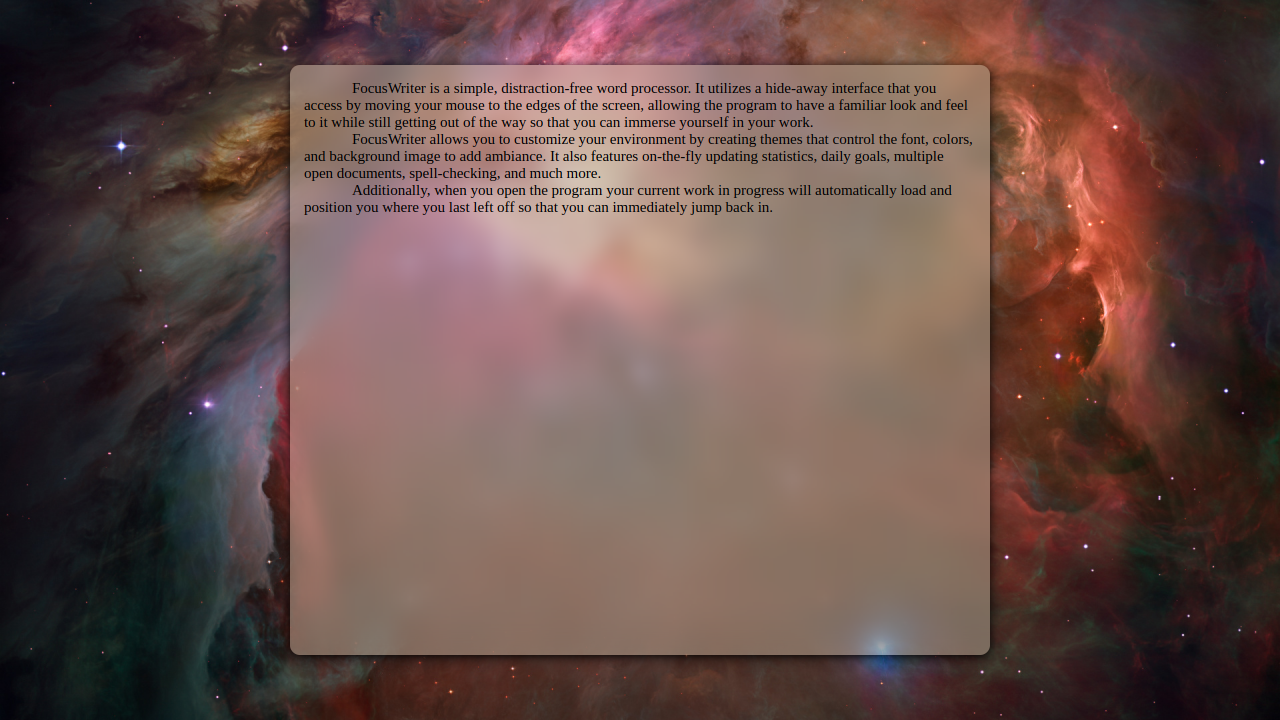
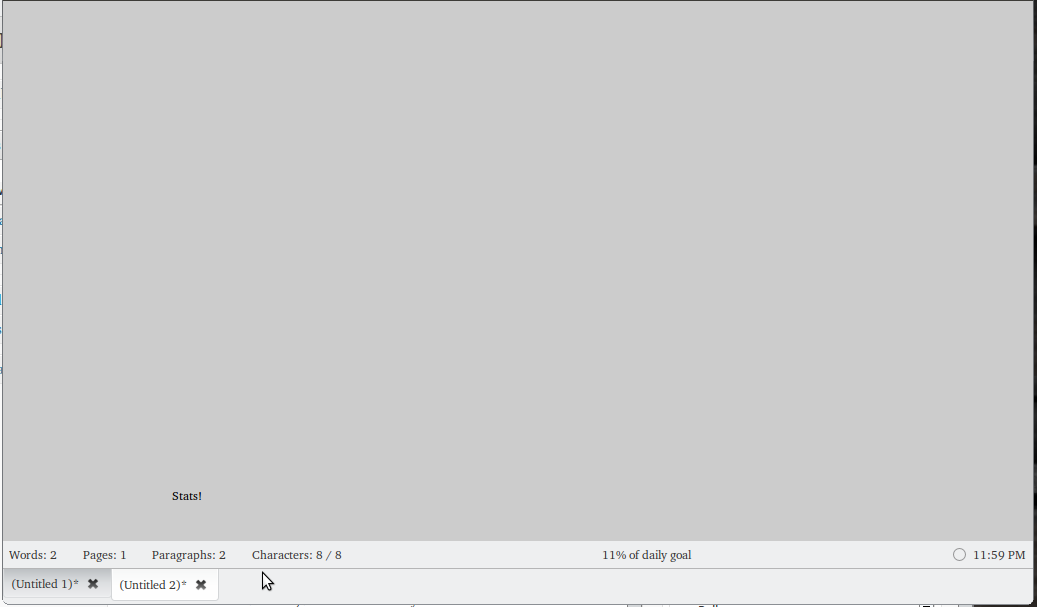
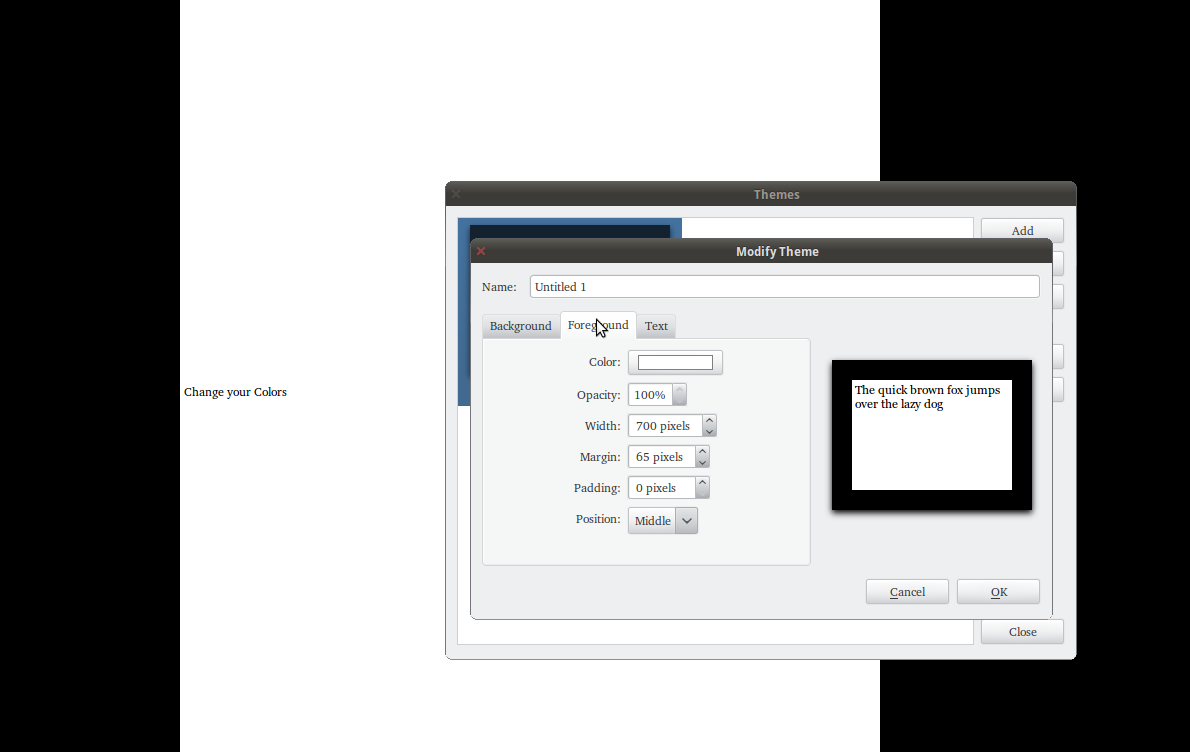
However, recently I’ve been turned onto writing software with little or no interface available. We’ve written about PyRoom before, a simple writer written in Python. I actually literally just installed it again last night, but today another bit of software showed up in our inbox, FocusWriter.

FocusWriter suits me a bit more, because of a few key added features that is has over PyRoom and other available software.
Featured and Yet Simple

The first time you launch FocusWriter, you get a plain, empty grey screen. While not exactly the most attractive colors to start with, these are totally changeable. Unfortunately, how to change things like this is not immediately apparent. I tried just about every key combo that popped into my mind, but couldn’t find any controls. Once I stopped being stubborn and actually read the instructions on the website, I realized that the controls were not hidden by a key press, but by simply tossing your mouse at the top or bottom of the screen.

This, I think, is rather clever, although it took me long enough to figure it all out.
There are a number of nice little touches to this simple interface. When the mouse is brought to the bottom, you get this view:

This gives you word count, page count, paragraph count, and character count, as well as percentage of Daily Goal accomplished and the time. All the things you might need, but not in your face distracting you. This is great, as when you need this info, it’s very easy to get out, but is otherwise out of sight.

Also cool is that there is the ability to add basic formatting. Often this is left out of apps like this to avoid any distraction, but sometimes you need some of the basics, and FocusWriter delivers (apparently added in the most recent version only)
The Rough Edges
Like any app, there are a few areas that I think could use a bit of improvement.
First up, when I first installed FocusWriter there was absolutely nothing. No tutorial, no hints, no nothing. I don’t know if there is supposed to be instructions that just aren’t there and it’s a bug or what, but help out the user and drop some text in there. If it’s just me and it installed funny, then ignore this paragraph everyone. :D
Secondly, while there is a button for installing themes (the source of which I couldn’t particularly found) there are none included besides the bland grey. While the point is to keep you from being distracted, something that’s at least pleasant to look at would be nice.

The fact that the included color palette looks like vomit doesn’t help, as it means you have to totally distract yourself for a bit screwing around with colors.
Speaking of included palette:

Ew. For what reason are those colors available?
However, those are minor minor complaints about an otherwise great app. The newest version literally came out NOW, as in the 23rd, so it is up to date and ready to go.
Features:
  • Hiding interface
  • Themes
  • Live Statistics
  • Daily Goals (time and word count)
  • Timers and alarms
  • Very adjustable interface
  • Spell Check as you type
  • Dictionary support
  • Multiple documents can be open in tabs
Installation:
Perhaps in it’s coolest feature, FocusWriter is available in Mac, Windows, and Linux all downloadable from their website. For Ubuntu, there is an available PPA, and you can install from PPA like so:
  • sudo add-apt-repository ppa:gottcode/gcppa
  • sudo apt-get update
  • sudo apt-get install focuswriter
Now all I need is an full featured writing software like Scrivener that doesn’t look like crap… anyone know of anything?